Contact page section
A full contact page section combining a Shopify contact form, a contact-information column, and an optional embedded map with an overlaid location card.
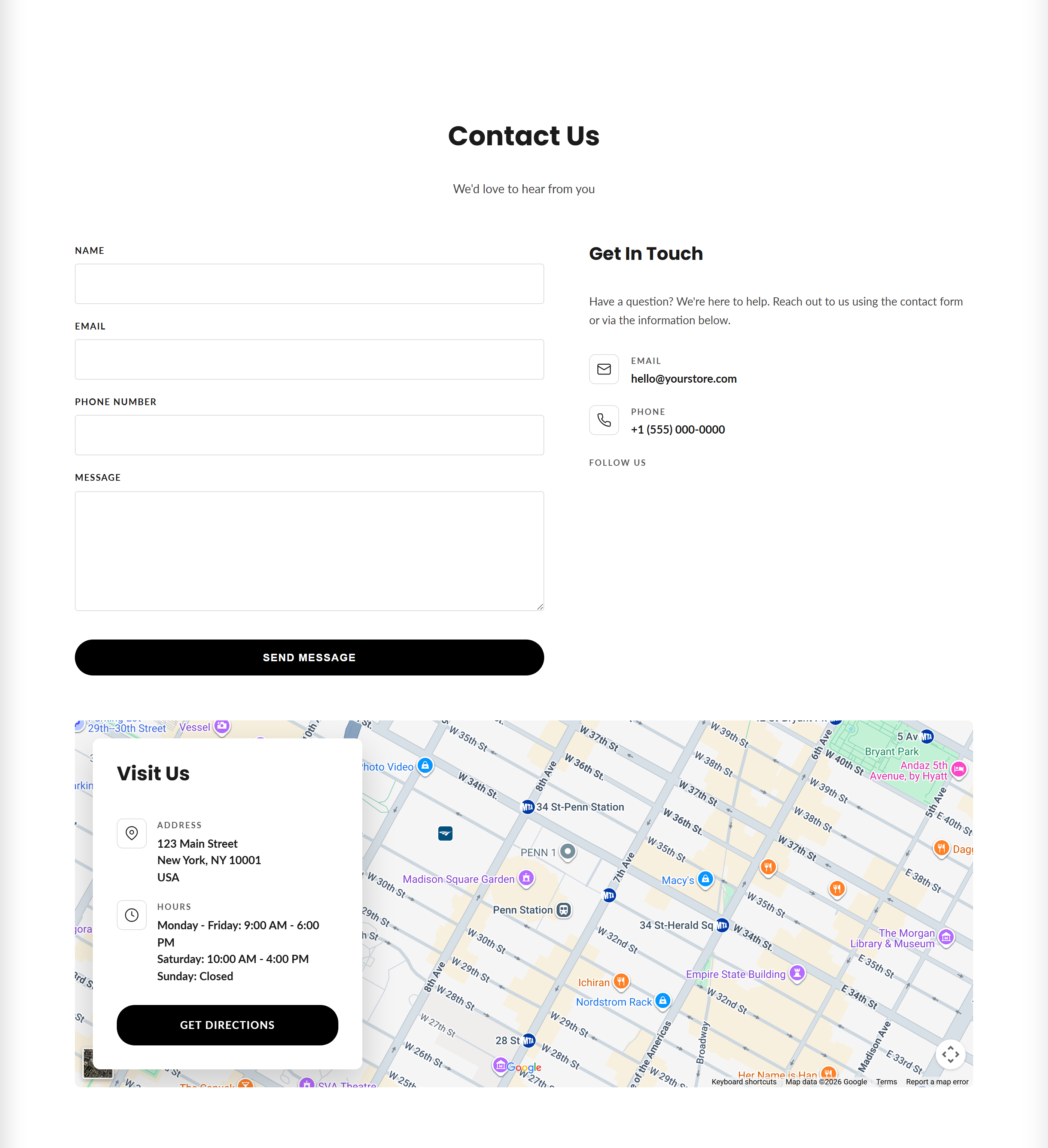
Contact form renders a two-column layout: a native Shopify contact form on the left and a contact-information column (email, phone, social links) on the right, followed by an optional Google Maps embed with an overlaid card showing your address, business hours, and a directions button. Every field label, heading, and info value is editable from the theme editor.
How to use it
In the Shopify theme editor, add or open this section, then:
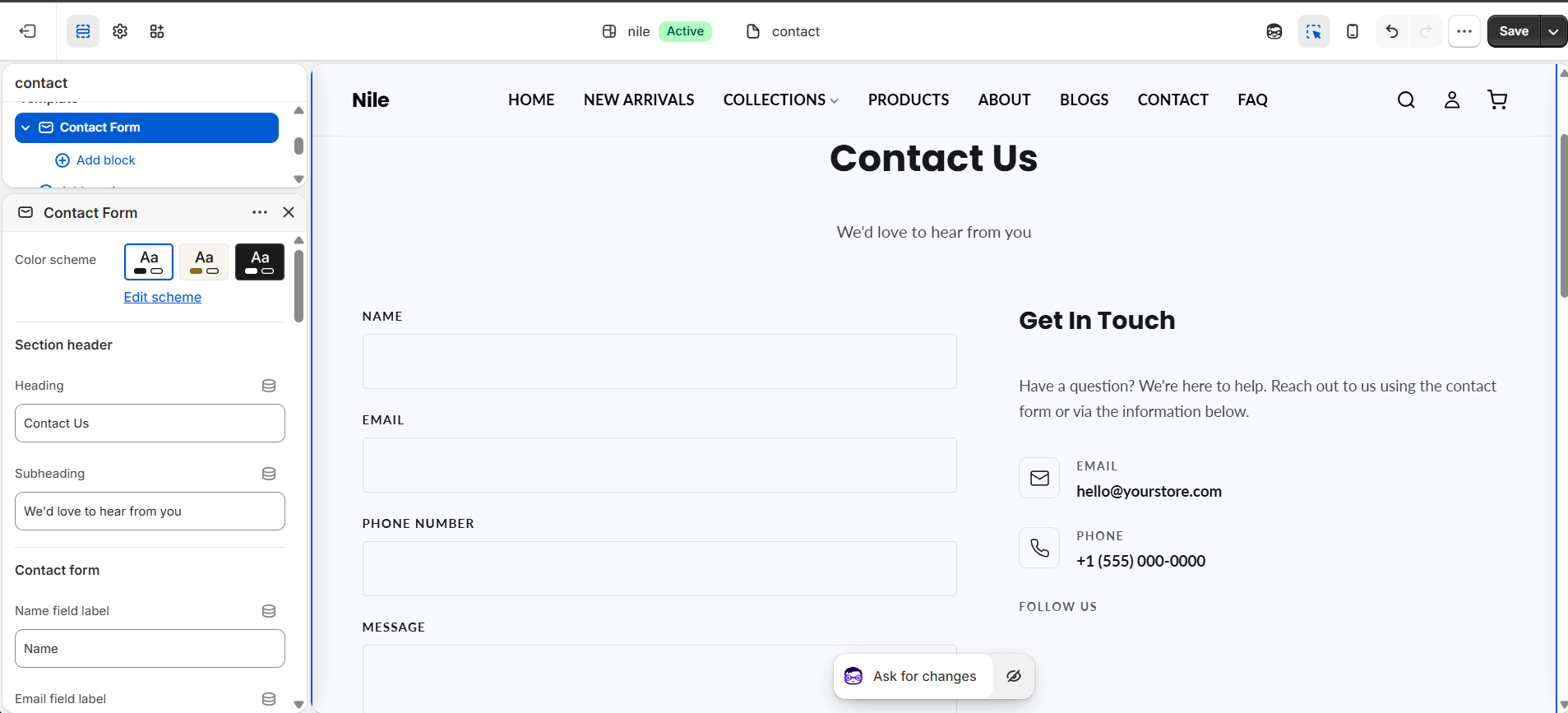
- In the theme editor open your Contact page and select the Contact form section.
- Under Section header set the Heading and Subheading shown above the form.
- Under Contact form edit each field label, toggle the optional Phone and Subject fields, and set the submit button and success message text.
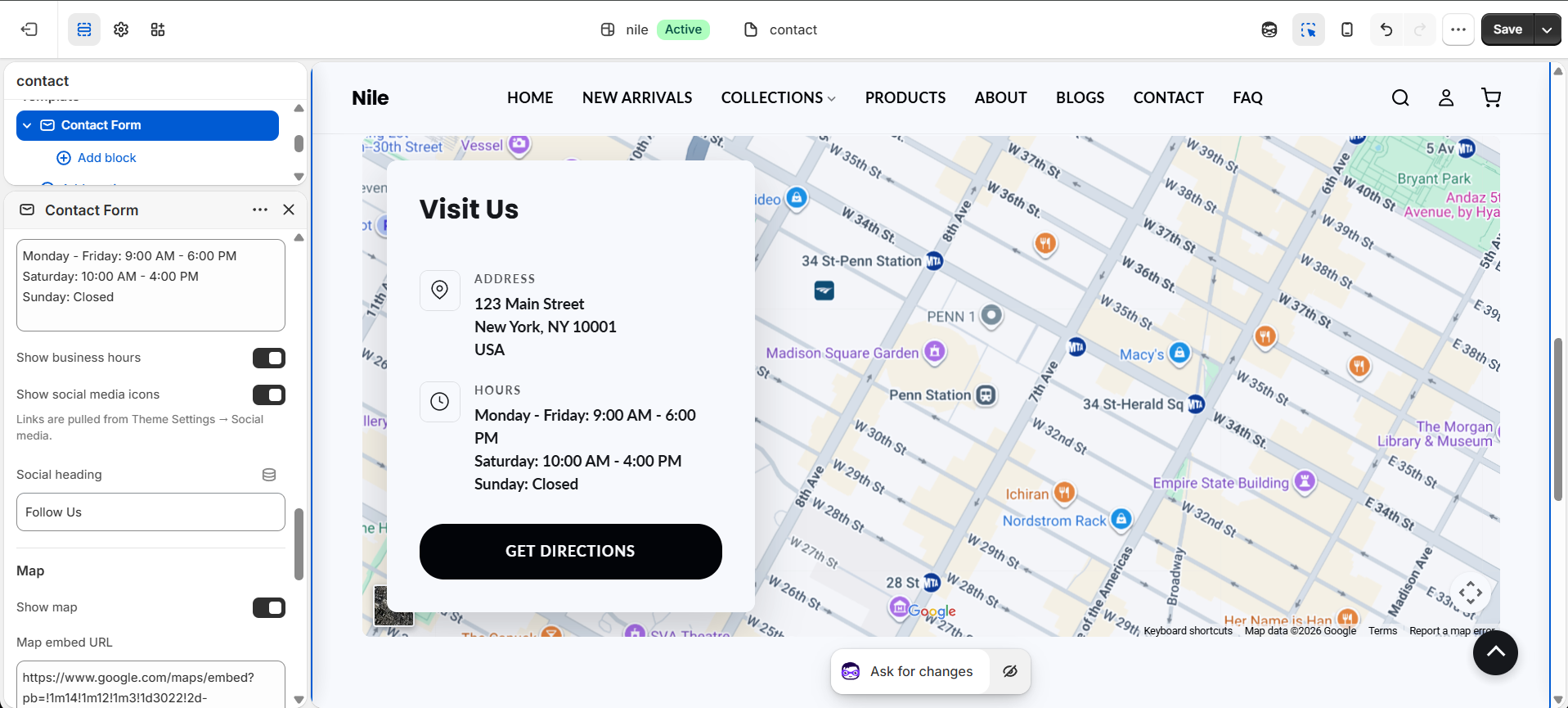
- Under Contact information enter your email, phone, address, and business hours, and toggle which items appear; enable Show social media icons to pull links from your theme's social settings.
- Under Map paste a Google Maps Embed a map URL, adjust the map height, and set the overlay card heading and directions button.
- Use Spacing to fine-tune top and bottom padding, then save.
For the map, use Google Maps → Share → Embed a map and paste the src URL (not the 'Send a link' URL), otherwise the map may not display correctly.
If you leave the Directions link blank, the section auto-builds a Google Maps directions link from your Address, so you rarely need to fill it in.
Social icons come from Theme Settings → Social media, not from this section - add your profile URLs there for them to appear.
Settings reference
| Setting | Type | Default | What it does |
|---|---|---|---|
| Color scheme | color_scheme | scheme-1 | Base color scheme applied to the section. |
| Heading | text | Contact Us | Main heading above the form; hides the whole header block when left blank. |
| Subheading | text | We'd love to hear from you | Optional line shown under the heading. |
| Name field label | text | Name | Label for the required name input. |
| Email field label | text | Email | Label for the required email input. |
| Phone field label | text | Phone Number | Label for the optional phone input. |
| Show phone field | checkbox | true | Adds an optional phone number field to the form. |
| Subject field label | text | Subject | Label for the optional subject input. |
| Show subject field | checkbox | false | Adds an optional subject line field to the form. |
| Message field label | text | Message | Label for the required message textarea. |
| Submit button label | text | Send Message | Text on the form's submit button. |
| Success message | text | Thank you for getting in touch. We'll be in touch soon! | Shown after the form is submitted successfully. |
| Info section heading | text | Get In Touch | Heading for the contact-information column. |
| Info intro text | textarea | Have a question? We're here to help. Reach out to us using the contact form or via the information below. | Optional paragraph shown under the info heading. |
| Email address | text | hello@yourstore.com | Displayed email, rendered as a mailto: link. |
| Phone number | text | +1 (555) 000-0000 | Displayed phone, rendered as a tel: link; shown only when 'Show phone number' is on. |
| Show phone number | checkbox | true | Toggles the phone row in the contact-information column. |
| Address | textarea | 123 Main Street\nNew York, NY 10001\nUSA | Address shown on the map overlay card. |
| Show address | checkbox | true | Toggles the address row on the map card. |
| Business hours | textarea | Monday - Friday: 9:00 AM - 6:00 PM\nSaturday: 10:00 AM - 4:00 PM\nSunday: Closed | Business hours shown on the map overlay card. |
| Show business hours | checkbox | true | Toggles the business-hours row on the map card. |
| Show social media icons | checkbox | true | Links are pulled from Theme Settings → Social media. |
| Social links heading | text | Follow Us | Label shown above the social media icons. |
| Show map | checkbox | true | Toggles the embedded map block (also requires a Map embed URL). |
| Map embed URL | textarea | (sample Google Maps embed) | In Google Maps, search your address, click Share > Embed a map, and paste the 'src' URL here. |
| Map height | range | 480px | Minimum height of the map, 320-700px. |
| Map card heading | text | Visit Us | Heading on the location card overlaid on the map. |
| Directions link | url | - | Optional directions URL; when blank, one is auto-built from the Address. |
| Directions button label | text | Get directions | Text on the directions button on the map card. |
| Padding top / bottom | range | 80px / 80px | Vertical spacing around the section (0-120px). |
This section accepts only @app blocks, letting you insert Shopify app blocks after the contact layout; it has no theme-defined content blocks.
Developer notes
Styling is loaded from contact-main.css; per-instance padding and accent/button colors are injected via an inline {% style %} block scoped to #ContactMain-{{ section.id }}.
- The form uses Liquid's native
{% form 'contact' %}with fieldscontact[name],contact[email],contact[phone],contact[subject], andcontact[body], plus success/error regions with ARIA live roles. - Icons render via the
icon-librarysnippet (mail, phone, pin, clock) and social links via thesocial-iconssnippet; buttons use the theme'sbtn-shape-{{ settings.button_shape }}class. - If no Directions link is set, a Google Maps directions URL is generated by url_encoding the stripped address into
https://www.google.com/maps/dir/?api=1&destination=.
{%- form 'contact', id: contact_form_id, class: 'contact-form' -%}
  {%- if form.posted_successfully? -%}
    <div class="contact-form__success">{{ section.settings.success_message }}</div>
  {%- endif -%}
  <input type="email" name="contact[email]" value="{{ form.email }}" required>
{%- endform -%}