Contact page
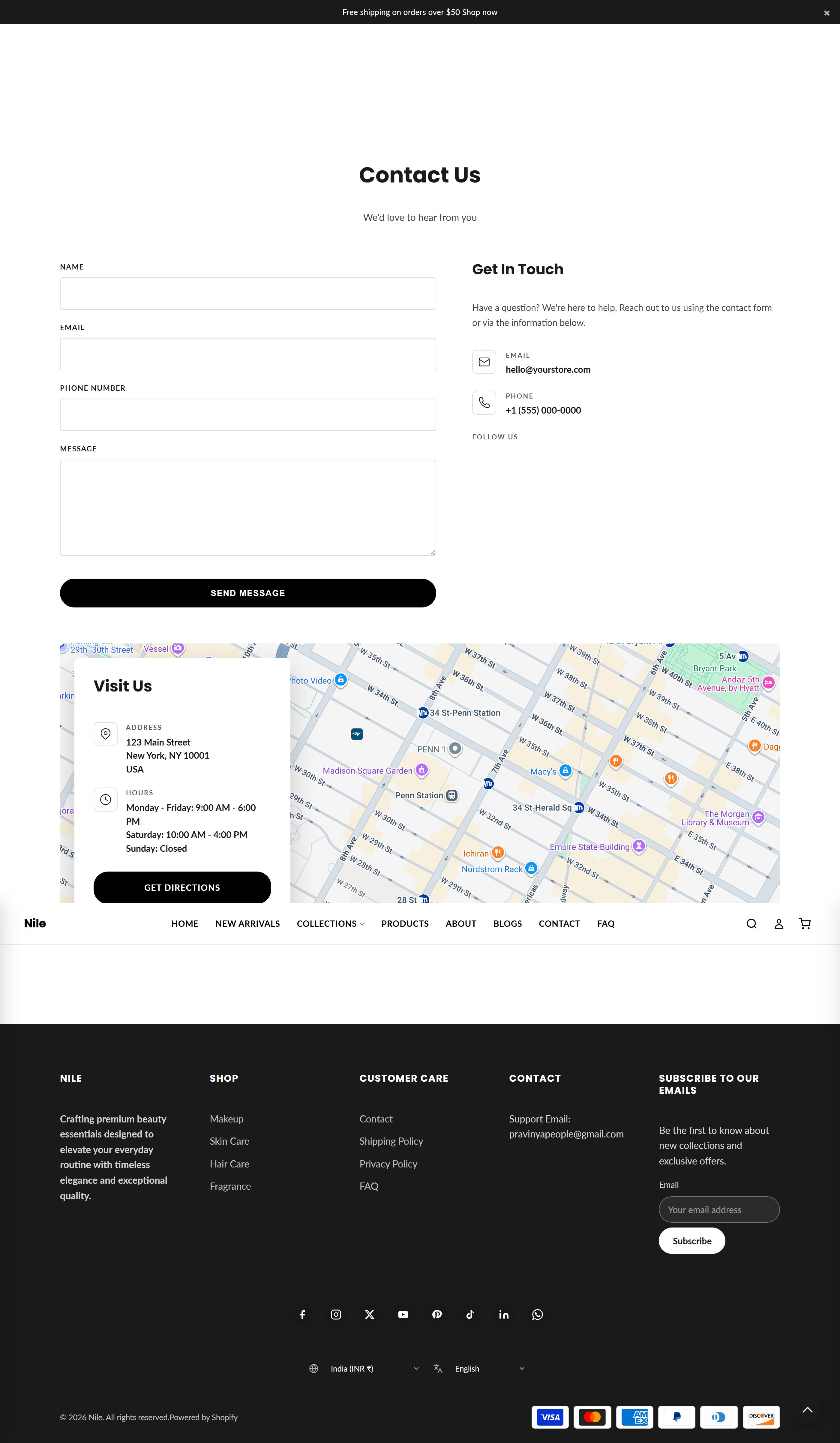
The Contact page template pairs a working contact form with a store info panel and an optional embedded map.
This template builds the storefront Contact page. It renders a single contact-main section that lays out a Shopify contact form beside a contact-information column (email, phone, social links) and, below them, an optional Google Maps embed with an overlaid location card showing address, opening hours, and a directions button.
Sections on this template
- Contact Form
How to use it
In the Shopify theme editor, add or open this section, then:
- In the Shopify admin, go to Online Store → Themes → Customize.
- Use the template switcher at the top and choose Pages → Contact (or open the page that uses the
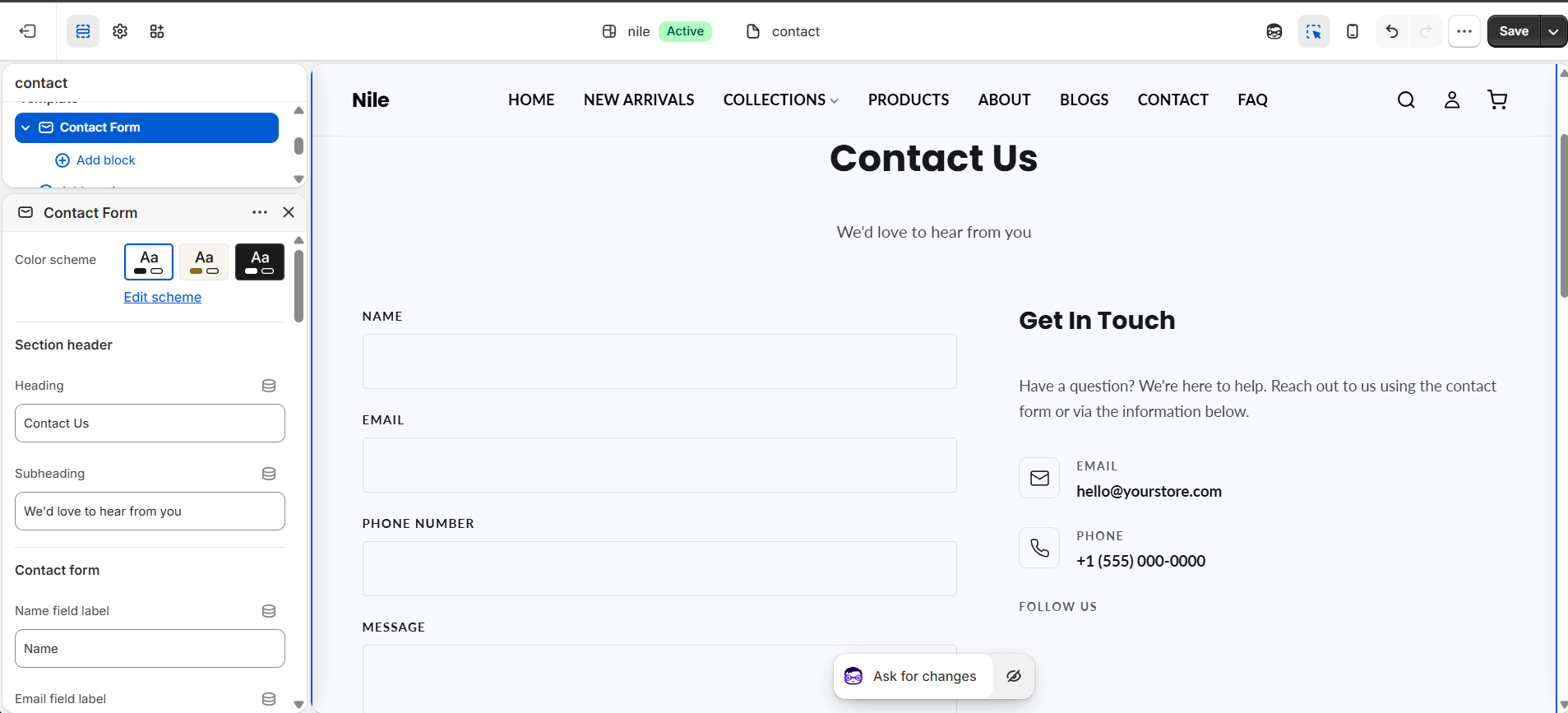
page.contacttemplate). - Click the Contact Form section to edit the heading, field labels, button text, and success message.
- Scroll the settings to fill in your contact information (email, phone, address, hours) and toggle which items appear.
- Under the map settings, paste a Google Maps embed URL and set the map card heading and directions link.
- Click Save. Form submissions are emailed to the address set in Settings → General → Store contact email.
Use the Google Maps embed URL (from Share → Embed a map → copy the src), not a normal maps link, or the map will not load.
Leave Directions URL blank to auto-generate a directions link from the address you entered; the map card only shows if Show map is on and an embed URL is present.
The Subject field is hidden by default; enable Show subject if you want submitters to set their own subject line.
Settings reference
| Setting | Type | Default | What it does |
|---|---|---|---|
| Heading | text | Contact Us | Main page title above the form. |
| Subheading | text | We'd love to hear from you | Supporting line under the heading. |
| Show phone | checkbox | true | Adds an optional phone field to the form. |
| Show subject | checkbox | false | Adds an optional subject field to the form. |
| Button label | text | Send Message | Text on the form submit button. |
| Success message | text | Thank you for getting in touch. We'll be in touch soon! | Shown after a successful submission. |
| Info heading | text | Get In Touch | Title of the contact-information column. |
| Info email | text | hello@yourstore.com | Displayed as a mailto link. |
| Show phone (info) | checkbox | true | Shows the phone number in the info column as a tel link. |
| Show address | checkbox | true | Shows the address row in the map card. |
| Show hours | checkbox | true | Shows the opening-hours row in the map card. |
| Show social | checkbox | true | Shows social icons (configured in theme settings) under a label. |
| Show map | checkbox | true | Toggles the embedded map with its location card. |
| Map embed URL | textarea | Google Maps embed URL | Paste the src from a Google Maps 'Embed a map' iframe. |
| Map height | range | 480px | Minimum height of the map area (320-700px). |
Supports only @app blocks, letting apps inject content at the bottom of the section; it has no theme-authored repeatable blocks.
Developer notes
Rendered by sections/contact-main.liquid; loads assets/contact-main.css and renders the section-color-scheme, icon-library, and social-icons snippets.
- Uses Shopify's native
{% form 'contact' %}tag; fields map tocontact[name],contact[email],contact[phone],contact[subject], andcontact[body]. - Scoped styles key off
#ContactMain-{{ section.id }}and pull button/accent colors from globalsettings(button_primary_bg, color_accent, button_shape). - If no Directions URL is set, one is built by url-encoding the address into a
maps/dir/?api=1&destination=link.
{%- form 'contact', id: contact_form_id, class: 'contact-form' -%}
  <input type="email" name="contact[email]" required>
  <textarea name="contact[body]" required>{{ form.body }}</textarea>
{%- endform -%}